Order for siblings
Overview
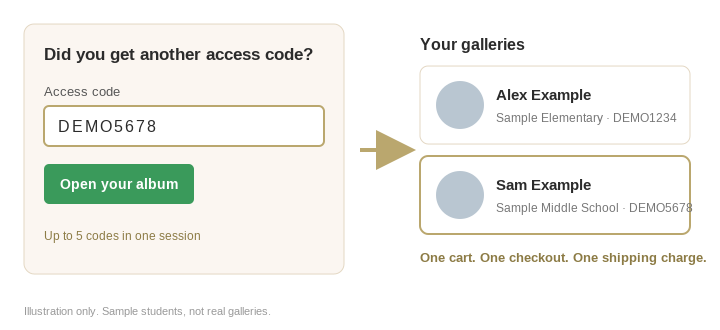
You can add up to five access codes in one session and check out once. One order means one shipping charge instead of several.
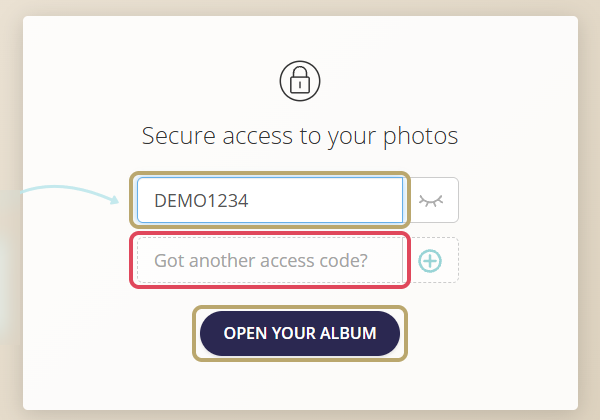
Add codes on the login page (easiest)
- Go to Gallery Access on stilllightstudios.com.
- Type the first child's code, for example DEMO1234.
- Click the Got another access code? box (or the + next to it) and type the next child's code, for example DEMO5678.
- Repeat for up to five codes.
- Click Open your album. You can now move between your children's galleries.
Already inside a gallery?
- Open the Login menu and click Did you get another access code?
- Type the next child's code and open it.
- Add items from each gallery to the same cart, then check out once.
Good to know
- Siblings at different schools can still go in one cart. Prices and products can differ between schools.
- One package with photos of both kids only works when both galleries use the same price list. If it won't let you pick the other child's photo, order a package for each child instead.
- Codes linked to your email? If both children are linked to your email, the link in our email may open both galleries at once.
See also
- Order the full gallery download for more than one child
- I can't find my child
Still stuck? Email support@stilllightstudios.com
with your child's name, school and (if you have one) your order number. We usually reply within 24 hours.