Your first order, start to finish
Overview
In this tutorial you'll place a complete photo order for one child: open the gallery, pick favorites, choose a package or individual items, check your cropping, and pay. It takes about 10 minutes.
By the end you'll know how to:
- Get into your child's gallery with an access code or email link
- Mark favorites in your wish list so ordering is quick
- Add a package, prints or downloads to your cart
- Check cropping and finish checkout
Before you start
You need:
- Your access code (from a QR card or email) or the gallery link from our email. Not sure where it is? See Find your child's gallery.
- A card for payment.
- About 10 minutes on a phone, tablet or computer.
Example used on this page
We'll use a sample student, Alex Example at Sample Elementary, with access code DEMO1234. Your gallery will show your own child's name and code.
Step 1: Open your gallery
-
Go to stilllightstudios.com and click Gallery Access at the top of the page.

The Gallery Access link is in the top menu of stilllightstudios.com. -
Type your access code and click Open your album. If you got an email with a gallery link, just click that link instead.
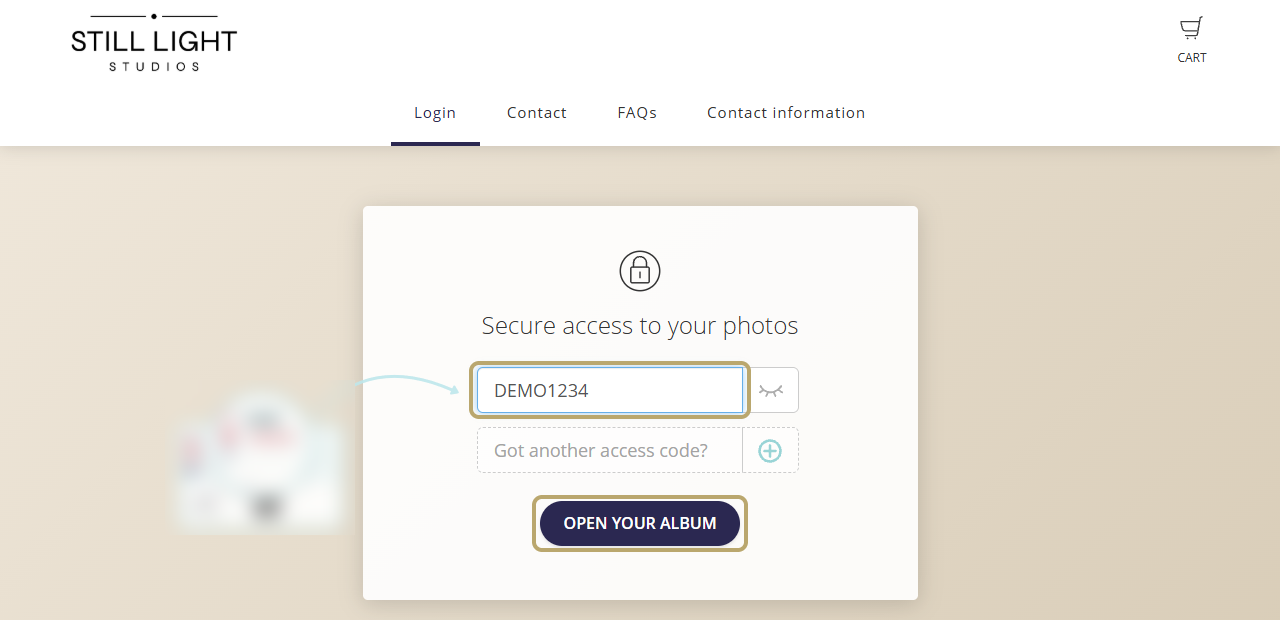
The login page. Type your code exactly as printed. You'll land on your child's welcome page. Click Shop now.
Step 2: Pick your favorites
- Click A la carte at the top to see every photo. Use the All / Individual / Group filter to switch between portraits and class photos.
-
Click Add to wish list (the heart) on each photo you like. Scroll all the way down so you don't miss any.
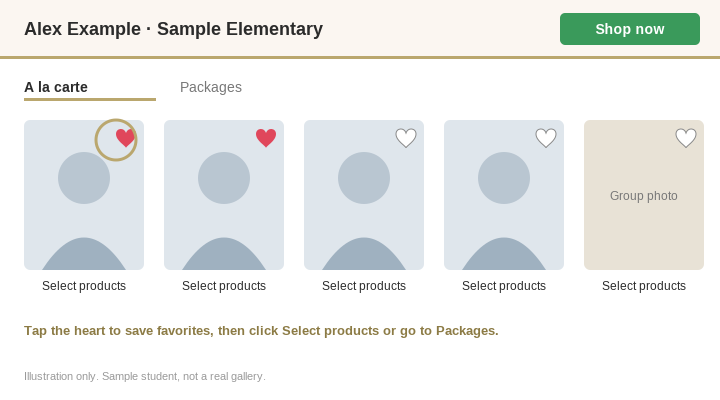
Illustration only. Your gallery may look a little different.
Note
If your school uses yearbook selection, you may also see a yearbook photo option here. See Pick your yearbook photo.
Step 3: Add items to your cart
Choose one of these. You can mix them in one order.
- A package (best value): click Packages at the top and click View package on the one you want. Choose your photos, then click Add to cart. See Order a print package.
- Single prints, digital images or retouching: click a photo (or Select products under it). The products are listed below the photo. For a print, pick a size from the dropdown. Then click Select and edit, check the photo, and click Add to cart.
Step 4: Check your cropping
- Click the shopping cart in the upper right.
- Look at each print. If you don't like how a print is framed, click the photo to adjust the crop. See Crop or reframe a photo.
- Have a discount or credit code? Type it in the Voucher code box under Redeem a voucher and click Redeem. See Apply a discount or credit code.
- Click Proceed to checkout. A reminder asks you to approve your cropping. Cropping is final once you approve, so take a second look, then click Approve and Proceed.
Step 5: Pay
- Sign in, or create a customer account with your email.
- Enter the shipping address for prints. We don't keep addresses on file, so enter the one you want for this order.
- Enter your payment details and place the order.
You'll get an order confirmation email. Keep it: the link inside is the fastest way to check your order later.
Summary
You opened your gallery, saved favorites, added items, approved your cropping and paid. Digital images arrive by email. Prints are mailed to the address you entered.
Next steps
- Order for siblings in the same checkout
- Check your order status
- Digital download details